CHAPTER 8: Setting Your Real Time Clock
Zebra Systems, ships OpenSpands with the clock battery preinstalled so that you should not need to change the battery for months or years from now. If and when you do need to change the battery, you will need to open the case, and you should read the instruction for changing the battery so as not to damage the delicate RTC module. The references you would need at that time are Chapter x - How to open the OpenSpand Case and Chapter y - How to change the OpenSpand Battery.
To be comprehensive, The following video, to be comprehensive, will start with an RTC that has not been set at all. Zebra ship Openspands with time set to New York Time ( EST). You may want to set the time for your time zone or to more accurate than Zebra.
Video: How to set the OpenSpand Reatl TIme Clock Time and Date
The following is a transcript of the above video.
I am about to show you how to set the OpenSpand's Real Time Clock Date and Time.
I start by pressing the CONFIGURATION button on the top right of the OpenSpand Expansion Unit
The configuration screen appears. The last 4 commands, D,T,S and Q are the ones we will use to set the date and time.
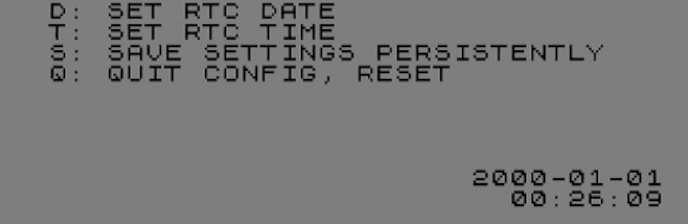
Also note that the date and time appear in the lower right of the configuration screen. I believe it is the firmware loaded onto the OpenSpand that determines this date. It is also interesting that the clock time is advancing.
To set date the date I will press D
I get the SET RTC DATE screen
- I'll type 2609023 to enter the date
- Followed by S to STORE the date
- and lastly Q to return to config
We can see the date in the lower right of the screen has been updated
To set the time I will press T
- I get the SET RTC TIME screen
- I will type 131530
- Followed by S to STORE the date
- and lastly Q to return to config
Now we can see our newly set date and time in the lower right
and we can press Q one more time to quit config and reset
What EXACTLY is the Real Time Clock
and and what is it usefull for
THIS SECTION NOW YET WRITTEN
User Guide
- Home
- Users Guide
- Conventions used in this guide
- CHAPTER 1: OpenSpand Compatibility
- CHAPTER 2: Connecting Your OpenSpand
- CHAPTER 3: Choosing Your Display Settings
- CHAPTER 4: Testing Your OpenSpand
- *CHAPTER 5: Storing Programs on SD Cards
- CHAPTER 6 - Removing OpenSpand from its case without damaging it.
- *CHAPTER 7: Using a Joystick
- CHAPTER 7A: OpenSpand Sound Output
- CHAPTER 8: Setting Your Real Time Clock
- Chapter 9 - The OpenSpand Configuration Screen
- Chapter 10 - Installing your Real Time Clock Battery
- * Introduction
- *CHAPTER 5A - The OpenSpand Configuaration Screen
- !! Chapter titles preceded by an asterisk * have not been written yet !!
- INDEX TO DEMO SOFTWARE ROUTINES
- FAQs
- CONTACT